



What's A Classroom?

Classrooms help you manage both people and analytics. You can create unlimited Classrooms and you can change both the Students and Lessons in those Classrooms at anytime.
No matter what size or type of an organization you represent, visualize your efforts here like that of a school. The stakeholders that you serve are your students, and the content we offer, will be your lessons. You will set up your "Classrooms" to provide specific students with specific lessons.
So instead of all your students receiving all the same content, your "Classrooms", will give you the ability to manage and monitor different content being served to different groups of students.
For example, most larger Organizations find it useful to organize their students into groups that they can manage and monitor separately. So let's say that your Organization wants to place your 100 students, in 5 separate groups of 20 students each. You will create 5 separate Classrooms to do this.
But there are othe uses. Maybe you want to separate your Staff Group, from your Student & Parent Groups. You would create 3 separate Classrooms to do this.
You will also use your "Classrooms" for Analytical purposes. You might set-up Classroom A to be advertised via Social Media, while Classroom B is advertised in a Newsletter. You can then compare which Classroom produced better results.
Creating A Classroom | Campaign

Step 1: What's a Classroom?
Classrooms are groups that you will either assign, or invite, students into. Hit this Quick Click pop-up...
Step 2: Organizing Your Classrooms.
Learn how most people organize their Classrooms. Hit this Quick Click pop-up...

"Our school organized all students by Class Year. We then created smaller Classrooms, that are each managed by guidance staff. It's worked perfectly."
Kristen P.
Guidance Counselor, Thomas Jefferson MS

"Our organization created separate Classrooms for each segment of the community, and also for each type of outreach we run within each community. This lets us see how each outreach affects the behavior of each population. It's a Game-changer!"
Angel M..
Outreach Coordinator, Mendoza County
Quick Help: Create a New Classroom
This page will refresh throughout the process. Click here to download instructions as a PDF.
Creating a New Classroom:
Your organization(s) are listed below. Start by Clicking on the Name of the Organization you wish to add a Classroom to.
-
- Once you select the Organization, the background will turn green. It will list all of the courses that you have access to, and all of the Classrooms that already exist.
- Click on the white button that says "Create "New Classroom".
- Enter the Name for the new Classroom.
- Enter the number of "Seats" that you will need in the new Classroom. (One Seat = One Student)
- Ignore the Group Leader & Users for now.
- Select at least one Course from the list. To select multiple courses, you can hold down the Option or Command key while clicking.
- Click the "Submit" button.
*You can edit all of these details at any time, once your Classroom has been created.
*We recommend using the Invite or Enroll Students page to ADD or MOVE students and Classroom Leaders from your Classrooms.
Quick Help: Edit an Existing Classroom
This page will refresh throughout the process. Click here to download instructions as a PDF.
Adding Students & Classroom Leaders:
1. Click here to ADD, MOVE or DELETE Students or Classroom Leaders from your Classrooms.
Editing Courses or Seats in an Existing Classroom:
Your organization(s) are listed below. Start by Clicking on the Name of the Organization you wish to edit.
-
- Once you select the Organization, the background will turn green. It will list all of the existing Classrooms in the Organization.
- Click the "Edit Classroom" link next to the Classroom name.
- Edit the Name, Seats or Courses for the Classroom.
- Click the "Submit" button.
Deleting a Classroom:
You cannot fully delete a Classroom without contacting support.
Instead, you should edit the group as described below:
(1) remove all the students from that Classroom
(2) remove all open seats from the seat count
(3) rename the group(s) to "VOID-1", "VOID-2" etc.
Then submit a delete request to our support team.
Please Login to view this page
Managing or Editing Classrooms
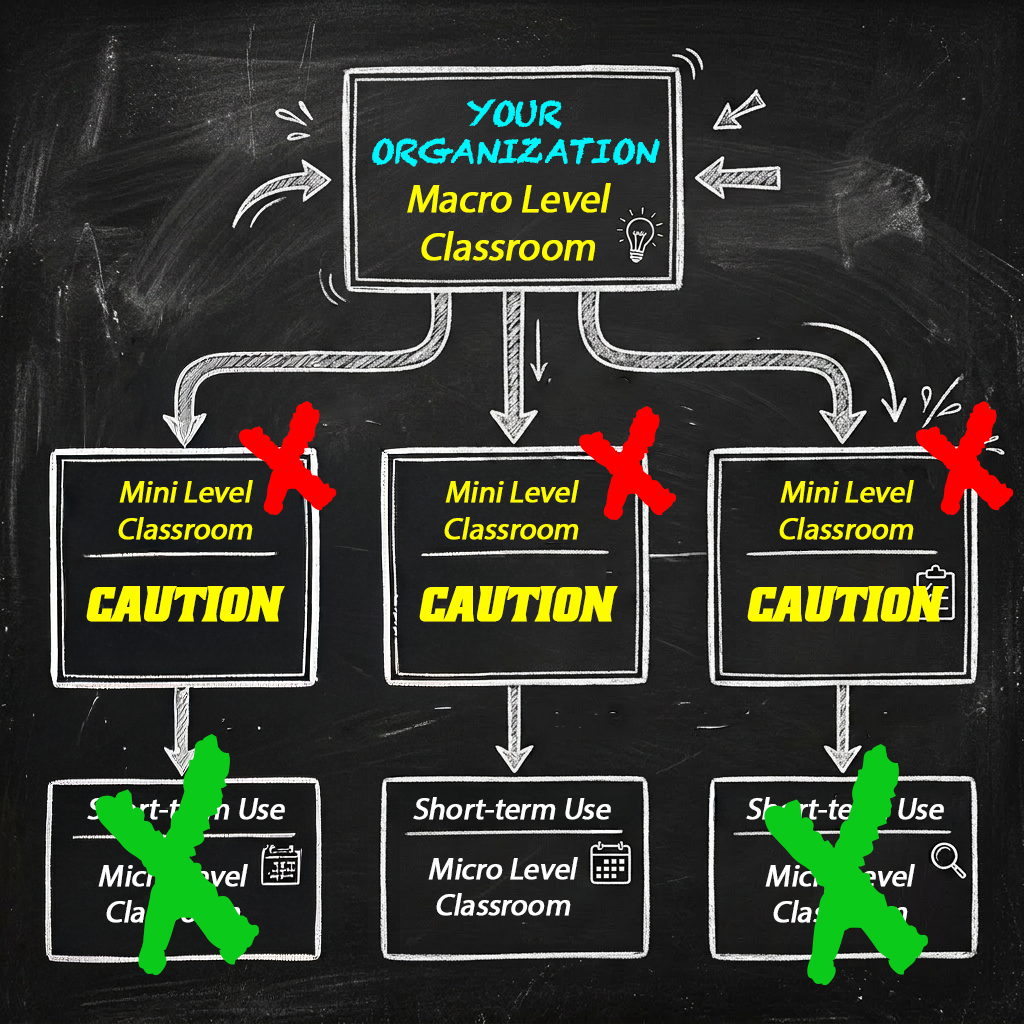
You can EDIT or DELETE any of your Classrooms at any time. Move Lessons, Courses or Students in and out. Or Delete the Classroom as soon as it's no longer needed.
Remember that your groups flow from the Top Down. In our example, we started with our Full Organizational Roster (ALL STUDENTS), then we created a classroom for CLASS of 2026 so we can track and manage those students together. Then from the Class of 2026, we created a smaller classroom for HEALTH PERIOD ON; now we can manage just the students in HEAELTH PERIOD ONE.
At anytime, we can change or delete the bottom Classroom without affecting those above it. So if you deleted the HEALTH PERIOD ONE classroom, those students are still in the CLASS OF 2026 group, and they are still in your Full Organizational Roster.
At anytime, you can create unlimited Classrooms nested off of the group above it. So you can start with the Class of 2026 student roster, and create any number of smaller Classrooms off of it, for any reason. If you change or delete them, the CLASS of 2026 remain intact. But anytime we change or delete any of the upper-level Classrooms, we will change or delete all of those below it.
With this in mind, take a moment to plan out what main organizational framework your Organization will find useful, and plot out your first Classrooms to serve this purpose. Download this blank planning chart as a guide.
You can always change things up, but it's much easier if you have a plan from the start.
THE POWER OF CAMPAIGNS
A campaign is simply an organizational tool that you will use to differentiate between different groups of students, or different types of community efforts. You will always have access to macro-level reports that include ALL of the student activity in your organization. But most organizations find it useful to also differentiate between groups of students, or types of educational outreach efforts.
For example, a school may want to assign certain students to a teacher or guidance counselor who will be primarily responsible for managing that group of students. Using Campaigns/classrooms, that teacher will be able to segregate their students, manage them and run mico-level reports on just that cohort.
A community organization that offers wellness courses to their stakeholders, may need to know what courses generate more interest, what groups are more engaged, what advertisement methods produce higher conversion rates, or other invaluable insights into the preferences and behaviors of the people they serve. Using Campaigns, your organization can compile invaluable data on your community and maximize the effectiveness of your efforts.
If you DO NOT need to segment your students and you WILL NOT be comparing the results of multiple educational campaigns, you DO NOT need to create any campaigns. An example of this set-up would be a family or small group that is merely here to educate itself. If that describes you, just keep it simple and move directly on to "Enrolling Students."
So, whether or not you choose to use campaigns, you will always be able to run macro-level reports on your cumulative student body and on your group's cumulative efforts. You will also be able run highly detailed reports on individual students. Using campaigns simply gives you the additional ability to run mid-level reports on smaller groups of students, or on individual community efforts. See below for some examples on how our clients are using Campaigns.
BASIC SCHOOL CAMPAIGNS
Some schools will offer different courses to their STUDENTS, STAFF & PARENTS. They usually choose to separate these groups into at least three separate Campaigns/classrooms, so they can offer different classes and run different reports with these different groups.
BIGGER SCHOOL CAMPAIGNS
Some schools also choose to segment students by class year, or by their GUIDANCE COUNSELOR, or by their health class TEACHER. That way a different staff member can be assigned to manage different courses, to different groups of students, at different times.
Using campaigns, each group can be managed separately, and their teacher can easily run reports on just their group(s) of students. You can create an unlimited number of campaigns/classrooms and use them any way you wish.
COMMUNITY ORGANIZATION
Analytics are the lifeblood of community organizations. They help you understand your stakeholders and better meet their needs.
Your "campaigns" help you A/B test different outreach methods. Offer different courses to the same group, or offer the same course in different ways; or maybe at different times. Try incentives, run competitions, explore different partnerships or reach out to different groups. Campaigns help you measure the outcomes of everything!
You can Add, Edit and Delete Campaigns at any time. You can also change your mind and reconfigure your Campaigns at any time. When you delete a Campaign, you do not delete the student or their data, so you can reconstitute your Campaigns later, and re-run reports that are limited to the new cohorts. You can also update or reconstitute your Campaigns each year, as Freshmen, move on to their Sophomore year or as students switch teachers.
Organizing Your Classrooms
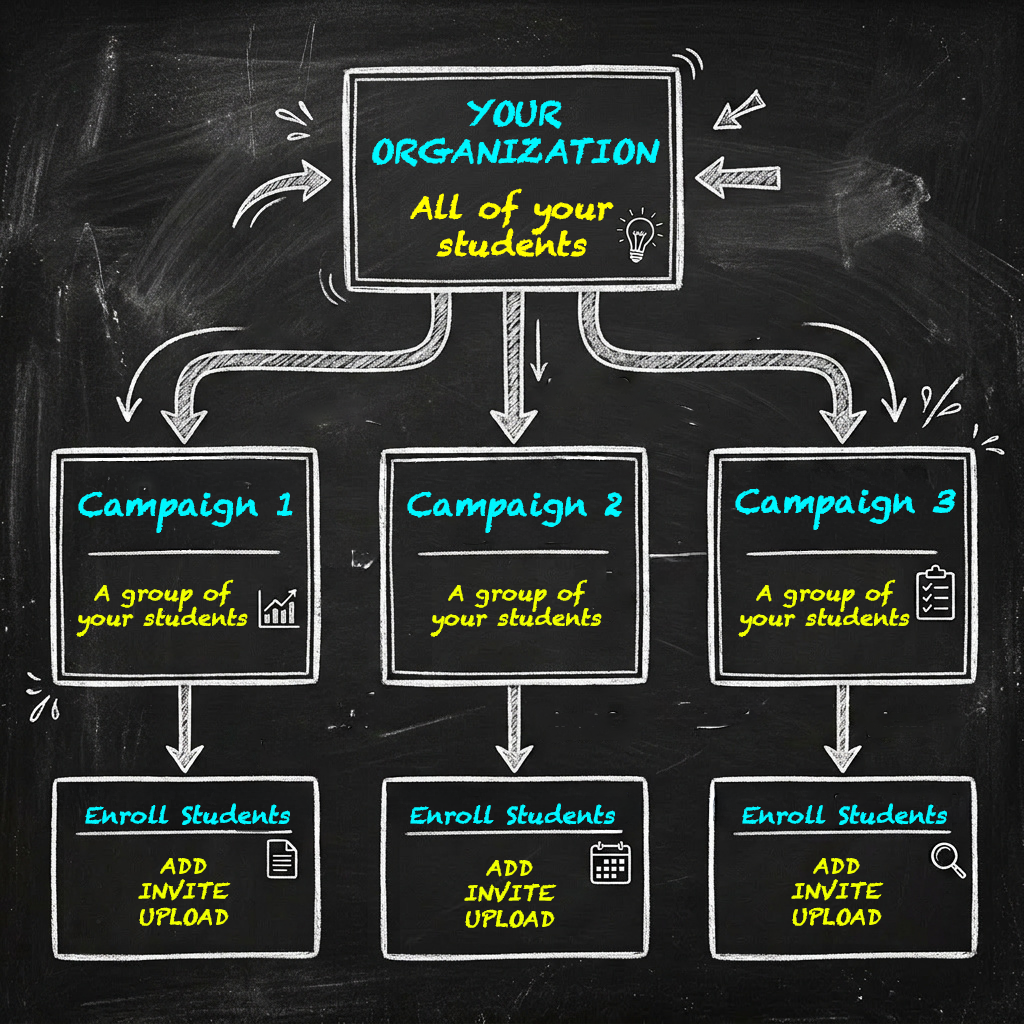
All of your students will always be visible as one large group. It doesn't matter how you added or organized them.
You can then Organize them into increasingly smaller cohorts (Classrooms). Think of this as filtering or nesting your groups. It always works from the Top-Down.
So from ALL of your students, you may want to create a Class of 2026 Classroom to keep that group together. Then from the Class of 2026 group, you may want to create a Health Period One Classroom, so those 25 students can now be supervised by their own teacher.
This allows you to manage and monitor those students from the Top Organization Level, or at the Class of 2026 level, or at the Health Period One group level. And you can change those groups anytime you want.
Your Organization may also use Classrooms to distinguish between different efforts. (ie. Social Media Campaign, Pizza Party Contest) This gives you the ability to easily compare outcomes and conduct SWOT assessments of your efforts.
Examples in Use
Allentown High School
Incoming students are initially on-boarded to a Campaign based on their class year (ie. "Class of 2027"). Students will stay in that Campaign until they graduate. The guidance department simply moves courses in and out of that Campaign. Students are notified when there is work to be completed. Guidance staff uses class-level reporting to monitor and manage student progress. Their class size is approximately 100 students each.
This school also has Campaigns for "Class of 2027 Parents", and one for "Allentown HS Staff". Those students are self-enrolled by entering an Organization Code on their profile page. Parents earn benefits for their students by completing wellness courses, and Staff earn CEU's for their time.
Hope Valley Regional MS
Incoming students are initially on-boarded based on their class year (ie. "Class of 2027") This is done by importing a redacted student roster. Students will stay in that Campaign through graduation.
However, each year, students are also grouped into separate Campaigns based on their Health Class rotation (ie. "Health 1, Health 2, Health 3" etc.) Those Health campaigns are assigned to specific staff members to Manage. The health instructors are now able to manage and monitor small class sizes of 25 students each. During summer recess, the Health cohorts are deleted and refreshed, but the Class of 2027 stays together and is reassigned to new managers for the following year.
The Prevention Alliance
The Prevention Alliance serves a regional population of approximately 55,000. They offer and incentivize the completion of wellness courses by different segments of their community. The Alliance creates Organization Codes for each campaign, and promotes them through flyers, emails, social media, community leaders and school speakers. All of their students self-enroll by creating a free account on our website and then entering the campaign code on their profile page.
The Prevention Alliance runs competitions based on completion rates, and works with segments of the community to deliver scholarships, pizza parties and other incentives to their most productive partners and students.

USING CAMPAIGNS / CLASSROOMS
When you purchased your license, your organization selected the course(s) that you would like to offer to your students. In most cases, you will have access to our entire portfolio. But you do not have to offer that entire portfolio to your students. You have full control over (1) what you offer, (2) to whom, and (3) when it is available. You will use Campaigns to control the way that courses are offered to your students.
If you were to simply invite or enroll students directly into your Organization, they will all have open and instant access to all of the courses that your organization licensed from us. It would be like opening the front door to your school and allowing students to self-serve, by entering whatever classroom they want, whenever they want. That simple approach may be exactly what you are after.
But by placing your students into Campaigns/classrooms, you control what classes they access and when. This allows you to drip content to your students, which can prevent distraction and overload. It also allows you to keep content age-appropriate, or to keep the focus of your efforts on the priorities of your organization by limiting the courses available to your students. Basically, Campaigns apply filters to what your students can access under your license.
You can always add, delete or change the classes offered in any campaign, and that change will immediately be reflected on the profile of every student in that Campaign. Alternatively, you can always create new Campaigns and move students in or out of those Campaigns. You choose what works best for your organization, with the HELPFUL HINT that keeping students in their original Campaign is slightly easier for you to manage.
Remember, when you move a student from one Campaign to another, their records go with them. As long as you don't delete the student profile, you will have no trouble moving your students around. Students can also be enrolled in multiple Campaigns simultaneously, so you can activate and deactivate those separate Campaigns as you see fit. If you find this flexibility a little confusing, look below to see how most people do it.
It's Very Easy To Organize Your Students Into Groups (We call them campaigns). Once You Create Your Campaigns, You Simply Enroll or Move your students into them.
Here are some easy ways to get that done.
(Click here to download instructions as a PDF.)
BULK STUDENT ENROLLMENT:
Large numbers of students are easily enrolled into a campaign by importing a redacted CSV file of the organization's existing student roster. The only data requested for full functionality is a name and working email address for each student. *For those seeking full anonymity, a functioning proxy email address may be used, and any form of anonymous identifier created by the school may serve as the student's name. Student Wellness Solutions does not create this data for you, but your IT department should not find it difficult.
SELF-ENROLLMENT BY ORGANIZATION CODE:
The easiest way to invite, onboard, enroll or move students of any kind between campaigns to create an Organization Code for each campaign. (ie. "CLASS OF 2029") You will then display or distribute the code any way that you wish. Students will create a free account at StudentWellnessSolutions.com and enter that code on their profile page. In less than 15 seconds, they will be enrolled in your Campaign, get access to your courses and begin to generate progress reports on your dashboard.
INDIVIDUAL ENROLLMENT BY CAMPAIGN MANAGER:
The Manager of any campaign can Invite or Enroll small groups of students by clicking the "Add Student" button on their Campaign list. Fill in the name and email of the student and they will be sent an invitation link. When they click on the link, they well be registered with your Campaign, gain access to your course and generate progress reports on your dashboard.

What is a "Seat"?
A "Seat" or "User Registration" is more than just a number. It's our simplified way of accounting for your student's access to quality wellness content at Student Wellness Solutions, AND for your access to our resources, student management tools and analytical data. So each "Seat" is literally overflowing with value that goes well beyond educational enrichment.
Whereas individual access to a single course typically costs $24.99 or more, your organization is able to license bulk access to our full portfolio of courses, and full access to our student management system at a savings of up to 80% off the individual course rate!
This is an amazing benefit for your stakeholders and an incredible value for your organization. Plus you get access to our powerful data and analytical tools, which will empower your organization to maximize its efficiency and reimagine its impact on your world.
Budgeting Your Seats:
Every student that actually enrolls in your organization, whether you enroll them through your student roster, or whether they enroll themselves by using your invitation code, takes up ONE of your licensed seats. This happens as soon as the student profile is created and cannot be undone.
To further extend the enormous value and flexibility of your license, we allow that ONE SEAT (individual student profile) to access unlimited courses and be moved into unlimited campaigns. This allows you to seamlessly offer that one student access to multiple courses, and to enroll them in unlimited campaigns without worrying about additional costs. So if your organization engages with a community member, and they enroll in one of your courses, they immediately take one seat from your license. If that same student later responds to another one of your campaigns, and enrolls in another one of your courses during the same licensing period, they will still only use that ONE ORIGINAL SEAT. The seat is linked to the licensed profile. This keeps it simple for you, and your students.
Unused Seats Cannot be Refunded:
Keep in mind that every student profile created, will always spend one of your organization's licensed seats. This cannot be undone, or reversed, or refunded. Even if the student ultimately makes little or no progress in your courses, their profile will occupy one of your seats, and your available "user registrations" will immediately decrease by one. It's also important to note that you cannot reduce the number of seats purchased after you license them. If you license 100 seats, you can't later give 25 back because you didn't use them. Again, for simplicity sake, our pricing structure is based upon "Seats", but in real-life, our expenses are tied to the administration of your "License". Let us worry about that. Just understand that you can't return unused seats.
Adding Seats:
You can always add to the number of seats you have licensed, but the expiration will be tied to the original term and expiration date of your 1 year license. If you license 100 seats, and then add 10 more, all 110 seats will expire, or renew together, at the expiration of your 1 year licensing term.
Purchasing Advice for New Partners
We knew that we wanted to offer the Digital Dilemma Course to all 320 students, but we weren't sure how many parents would also take the Parent Version. We purchased 500 seats and it worked out perfectly!
We didn't know how many people would actually take advantage of the courses, so we initially bought 100 seats. We ended up adding 2500 more and are planning to double that this year...
Many organizations purchase enough seats to cover all of their potential uses, without any hesitancy. The value of your license is derived from the flexibility of this solution, the power of the analytical tools and the instantly available resource offered to the community. Left-over seats are not typically viewed as a line-tem loss.
But since our pricing strucutre is technically tied to the number of "Seats", some smaller organizations can't ignore the number. For those organizations, we recommend starting small, and adding seats as you go. Next year, you will have a better idea of what you need.
*Examples shown are proxies.